Chapter 3
The Designer
Projects, components, inspector, events, generated code and running.
Projects
The project list shows the workspace projects and those opened from other folders. At the top you see the Python found (Python and Tk versions) and the button to Look for Python again.
It is shown as a list with columns (Name, Type, Components, Modified and Folder) sorted by clicking their title, or as Cards. It has Search projects and is split into pages (Per page: 10, 15, 25 or 50). Double-click opens a project. Right-clicking a project offers Open, Run, Show the folder, GitHub…, AI budget, Duplicate and Delete; right-clicking the background, Add new › Desktop project (Python), Web project (Flask) or Open folder….
- New project: asks for the name and the target, Desktop (Python) or Web (Flask). The target cannot be changed later.
- Open folder…: opens a project stored in any other folder; it stays on the list as a recent one.
- Workspace: Show opens it in Finder or Explorer and Change… picks another folder.
- On each card: Run, Show the folder and, under More actions, GitHub…, AI budget, Duplicate and Delete (moves the project to the workspace trash).
- Tabs: each open project has its tab at the top, with a dot when there are unsaved changes. Several can be open at once; the Projects tab goes back to the list without closing anything. Close them with the ✕ or a middle click; they ask whether to save.
The studio copies the example projects into the workspace (new ones also appear in existing workspaces). See the full list in Included examples.
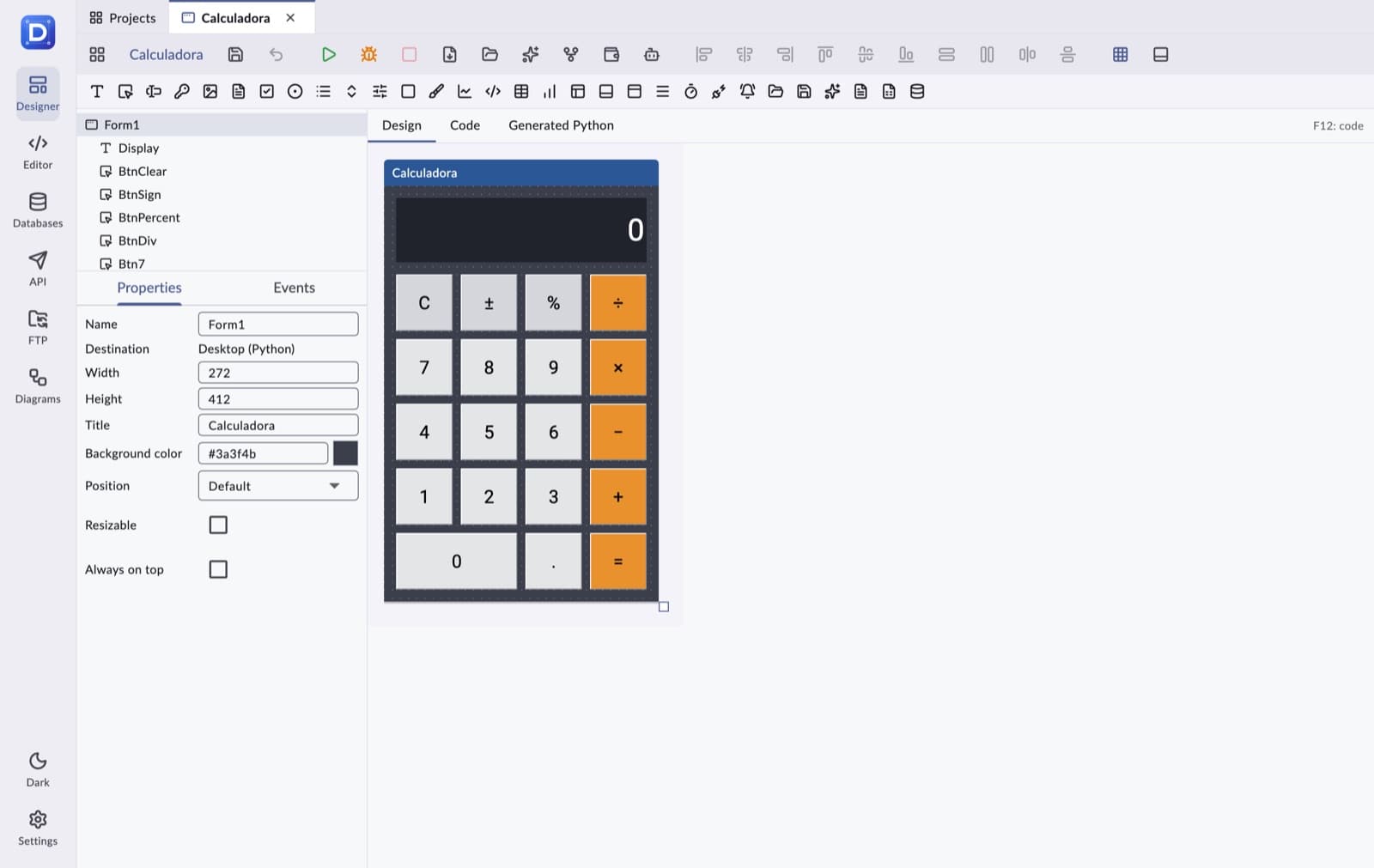
The Designer screen
- Toolbar: back to the projects, application name (click to rename it), Save, Undo, Run (F9) in green, Stop in red, Open in browser (web), Show the project folder, Export the .py file, GitHub, AI budget, Ask the AI, Chat with Claude Code, alignment and centering, Snap to grid and Show output.
- Output console: at the bottom; drag its top edge to resize it, minimize it with the arrow, and Copy the output copies every message.
- Palette: a bar of icons; hovering shows the component's name. Drag it onto the form or add it with a double click.
- Tree: the window and its components, with those inside a frame or a page indented.
- Inspector: Properties and Events of the selected component or, if none, of the window.
- Center: Design, Code and Generated Python tabs. F12 switches between design and code.
Components
Every component has a Name, a position and a size. Almost all accept Background color, Text color and font (Font, Font size, Bold, Italic), and the mouse events (Click, Double click, Right click, Mouse enter, Mouse leave). Typing components add the keyboard ones (Focus in, Focus out, Key down, Key up, Enter key).
| Component | Own properties | Main events |
|---|---|---|
Label (Label) | Text, Alignment, Justification, Relief, Line wrap | Mouse |
Button (Button) | Text, State, Relief | On press (Button1_click) |
Text field (Entry) | Initial text, Justification, Mask with (e.g. * for passwords), State, Linked table and Linked field | Keyboard and mouse |
Password (Password) | Placeholder text, Button to show the password, Maximum length, State | Keyboard and mouse |
Image (Image) | File (in the project's images folder), Fit (original size, whole without distortion, fill and crop, stretch), Border | Mouse |
Long text (Text) | Initial text (several lines), Line wrap, State | Keyboard and mouse |
Checkbox (Checkbutton) | Text, State, Checked | On press |
Option (Radiobutton) | Text, State, Group, Value, Checked | On press |
List (Listbox) | Items (one per line), Selection (browse, single, multiple, extended) | On select |
Drop-down list (Combobox) | Items (one per line), Initial text, Justification, State (normal, readonly, disabled) | On select |
Slider (Scale) | Title, From, Until, Step, Value, Orientation, Show value | On change (receives the value) |
Frame (Frame) | Relief, Border. Holds other components | Mouse |
Canvas (Canvas) | Background color. For drawing from code | Mouse, Drag, Button release, Mouse move |
Data table (Treeview) | Data source, SQL query, Columns (field|title|width), Limit, Sequence, Load on open | On select |
Progress bar (Progressbar) | Value, Maximum, Mode (determinate or indeterminate), Orientation | Mouse |
Page control (PageControl) | Pages (one per line), Active page. Each page holds its own components | On page change |
Status bar (StatusBar) | Text. Always takes the bottom edge of the window | Mouse |
Ribbon (Ribbon) | Tabs, groups and buttons (indented; “Button | icon”), Active tab | On button press, On tab change |
Menu (Menu) | Options (one per line; indent = submenu; - = separator). Non-visual: shown at the top of the window | On choosing an option (receives the option) |
Timer (Timer) | Interval (ms), Active. Non-visual | Every interval |
API integration (RestClient) | Base URL, Authentication (none, Bearer token, basic or a key in a header; the secret, preferably in an environment variable), Headers, Timeout. Non-visual | When a call finishes, If a call fails |
Tray icon (TrayIcon) | Hover text, Image, Menu (one option per line). Non-visual | On icon click, On choosing a menu option |
Open dialog (OpenDialog) | Title, Types (“Text|*.txt”), Default extension, Initial folder, Choose several files. Non-visual | On choosing a file |
Save dialog (SaveDialog) | Title, Types, Default extension, Initial folder, File name, Ask before overwriting. Non-visual | On choosing a file |
AI assistant (AiAssistant) | Claude model, Instructions, Effort, Maximum answer length. Non-visual. From code: ask, chat (with memory; reset starts another), summarize, translate, classify (one label from a list), extract (data into a dictionary) and their *_async variants, which don't freeze the window. Uses Anthropic's official SDK (pip install anthropic); when run from the studio it gets the key from Settings through the ANTHROPIC_API_KEY variable | When the answer arrives, If the request fails |
PDF report (PdfReport) | Document title, File name, Orientation, Author, Page numbers. Non-visual. From code: title, heading, text, table (with totals and the header repeated on every page), image (JPEG), line, page_break; then save, save_dialog, open or download (web). Nothing to install | — |
Excel report (ExcelReport) | File name, First sheet. Non-visual. From code: sheet, header, write_row, write_rows (text, numbers, dates and booleans with their type; frozen header with a filter); then save, save_dialog, open or download (web) | — |
Chart (Chart) | Kind (line, area, bar or candles), Title, Axis titles, Legend, Grid, Decimals, Value prefix and suffix, Maximum points. From code: set_series, add_point, set_candles, add_candle, clear | On clicking a point |
Data connection (Connection) | Connection (one of those saved in Databases). Non-visual | — |
Menu, Progress bar, Status bar, Timer and Page control arrive with version 1.0.5; Password, Image, Ribbon, API integration, Tray icon and the Open and Save dialogs, with 1.0.6; the Chart, with 1.0.8. In a web app, components without an equivalent say so in the inspector.
Moving, aligning and editing
- Click selects; dragging moves; the handles resize. With Snap to grid on, everything fits the grid.
- The arrow keys move the selection one grid step; with Alt (Option), one pixel; with Shift, they resize.
- With two or more components selected, Align left, Center horizontally, Align right, Align top, Center vertically, Align bottom, Same width and Same height become available (relative to the first one selected).
- With one or more selected, Center in the window (horizontally) and Center in the window (vertically) center them as a block in the window or in their frame.
- Right-click offers Cut, Copy, Paste, Delete, Bring to front and Send to back.
- Copy between projects: copied items go to the system clipboard, with their children and the code of their events. Paste them into another project (or after restarting the studio): components get free names and their methods are renamed with them, never overwriting an existing one. Helper methods called by those events must be copied by hand.
- Undo (⌘Z / Ctrl+Z) reverts each design change. If the code was edited by hand after a step, that step restores the design but not the code, and you are told so.
Window position
The window's Position property decides where it opens: Centered on screen (new projects), Default (the system decides) or Manual, with Left and Top.
Events and code
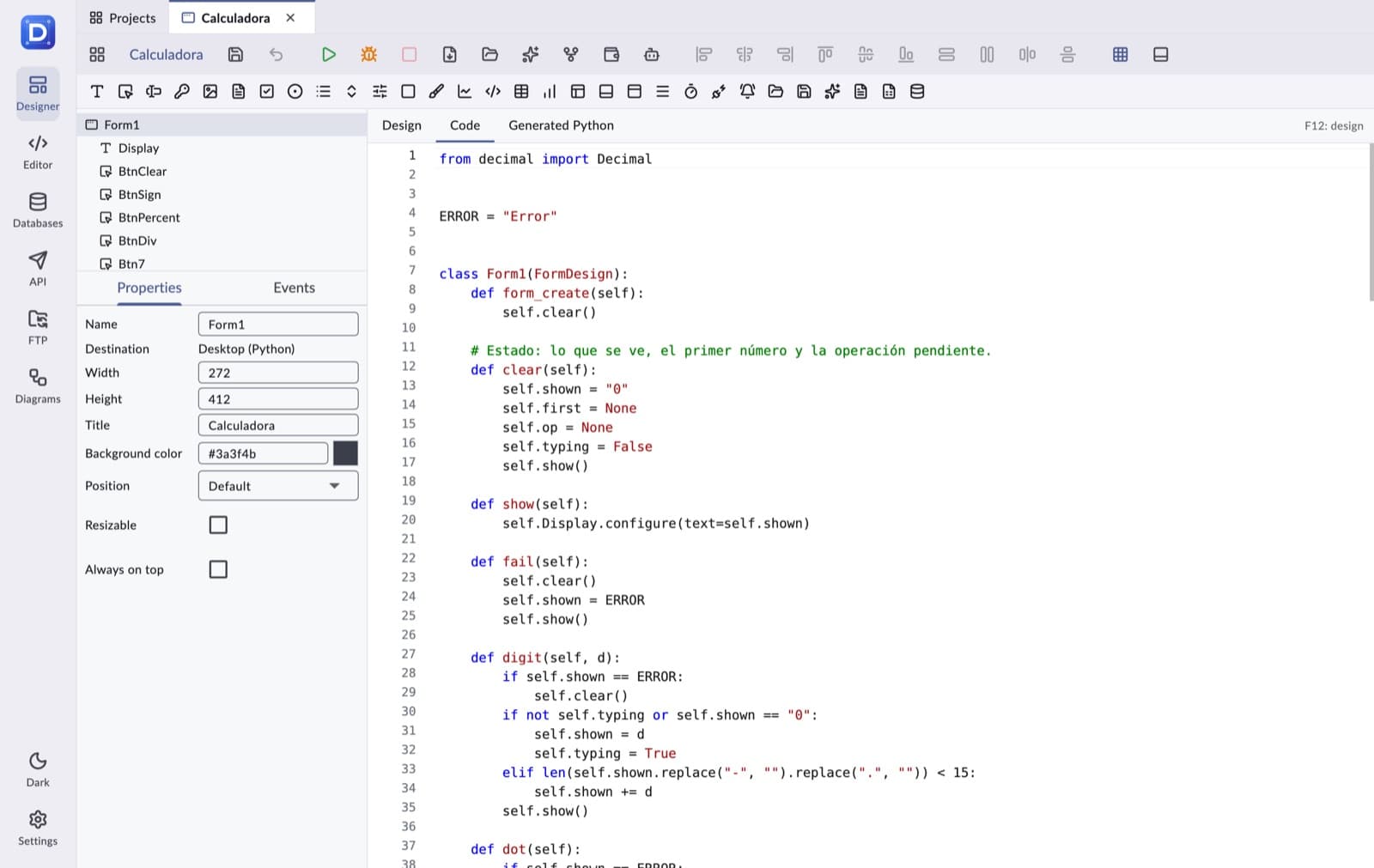
The window's code is a Python class named after the form that inherits from FormDesign, the class the studio generates. self.root is the window and each component is self.<Name>.
- Double-clicking a component opens its main event (
Button1_click,Listbox1_select…) and creates it if needed. - On the inspector's Events tab you type or choose the method for each event; Go to code jumps to it.
- Renaming a component renames its default methods and the references in the code.
- The window has its own events: On open (
form_create), On close, Key down and On resize, and its properties Title, Background color, Resizable and Always on top.
class Form1(FormDesign):
    def form_create(self):
        self.total = 0
        self.StatusBar1.config(text="Ready")

    def Button1_click(self):
        self.total += 1
        self.Label1.config(text=f"Clicked {self.total} times")
Put what should happen at startup in the On open event (form_create). If you define your own __init__, call super().__init__() first.
Generated Python and export
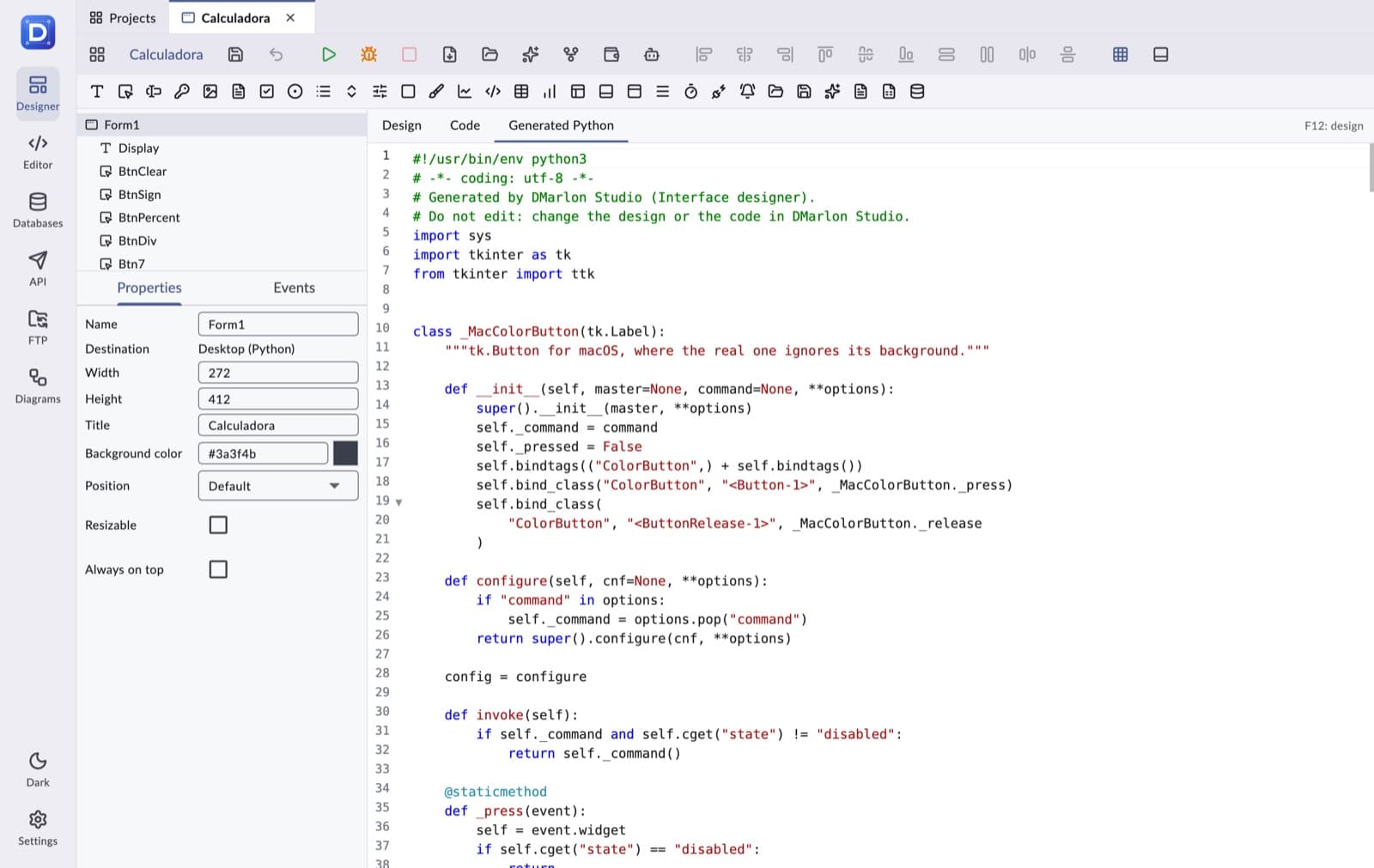
The Generated Python tab shows, read-only, the complete file that runs: the design turned into code plus your class. When you run, it is written to build/<project>.py inside the project folder.
Export the .py file saves that file wherever you want. It works with any Python 3 with tkinter (or Flask, for web apps) without the studio.
Run, stop and see the output
- Run (F9) saves the project and launches the window in its own system window, with your user's permissions.
- Stop closes the running window or server.
- Show output opens the panel with what the app writes (
print, Python errors) and the Python used. - For a web app, the studio starts the Flask server on this computer and opens the browser; Open in browser opens it again. It can only be reached from this computer.
- If a Python package is missing (Flask, the Anthropic SDK, a database driver or pystray), the studio says so before running and offers Install: it installs it with the pip of the same Python that runs the project and then carries on. You can also Copy the command to do it by hand.
Included examples
They all keep their data in the project folder and work without any setup. Those marked (web) also exist as a Flask app.
| Example | What it shows |
|---|---|
| Calculator (web) | Buttons, events and state |
| Unit converter (web) | Drop-down lists and computing while typing |
| Tasks (web) | A list with adding, removing and saving |
| Stopwatch (web) | Timer, menu, progress and status bars |
| Customer form (web) | Page control, lists and validation |
| Notes editor (web) | Ribbon and the Open and Save dialogs |
| API query (web) | Background API integration and a data table |
| Notepad | Classic menu, open, save, undo and a status bar with line and column |
| Diary | Contacts and appointments in SQLite, search and pages |
| Currency converter | Real exchange rates (ECB) with API integration and an offline fallback |
| The snake | A game on a canvas with a timer and a saved high score |
| Music player | Playlist, volume and progress (best with pygame) |
| Monthly sales (web) | Line, area or bar chart and a live mode |
| Stock market (web) | Candles, moving average and volume with live simulated data |
| Windows and dialogs | Messages, questions, asking for data, another window that returns a result, a modal dialog and non-modal windows |
| Text assistant (web) | Claude to summarize, translate, classify and extract data, and a chat with memory |
| Reports (web) | A sales table exported to PDF and Excel |
| 3D viewer | 3D shapes drawn on a canvas: mouse rotation, animation, lighting and wireframe mode |
| Receive over IMAP and send over SMTP with attachments, without freezing the window | |
| CRM web, Invoicing web | Complete web apps with SQLite |
| Web blog | A real website made with the HTML view: home page, articles, comments, newsletter, accounts with login and sign-up, and a dashboard |
| Web shop | Electronics shop: deals, cart, accounts, simulated payment, “My account” and a sales and stock dashboard |
| Odoo / ERPSqlite contacts (web) | Connecting to an Odoo over XML-RPC |
Data connections
- Save the database in the Databases module (SQLite, PostgreSQL or MySQL/MariaDB).
- Add a Data connection to the form and choose that connection in its Connection property.
- Add a Data table, choose the connection in Data source and write the SQL query and the Columns (
field|title|width). - To edit the selected row, link a Text field with Linked table and Linked field.
From code, self.Connection1.query(sql, params) returns rows and self.Connection1.execute(sql, params) changes data (always with ? parameters, never by joining text). self.Treeview1_refresh() reloads the table.
Passwords are never written to the generated file: they reach the process in DMSTUDIO_DB_… environment variables. An exported file reads them from the environment.
HTML view: real websites
The HTML view shows HTML written by your code. With Full page (web) switched on, the whole page is that view: no form frame, its own CSS, like a normal website. The Web blog and Web shop examples are made this way.
self.Site.set_html(html, top=True)changes the content (topgoes back to the top of the page).- A link or button with
data-action="post" data-arg="7"calls the On clicking a link or sending a form event with anHtmlAction:action.nameispostandaction.argis7. - A
<form data-action="search">sends its fields: read them withaction.get("q")or inaction.form. - On the desktop, the view shows simple HTML (headings, paragraphs, lists, links and forms) in a text box; CSS styles only apply on the web.
import html

class Form1(FormDesign):
    def form_create(self):
        self.Site.set_html('<h1>Hello</h1><a href="#" data-action="greet">Greet</a>')

    def Site_action(self, action):
        if action.name == "greet":
            name = html.escape(action.get("name", "world"))
            self.Site.set_html("<h1>Hello, %s</h1>" % name, top=True)
The HTML view paints HTML as is: always escape what the visitor writes with html.escape. The page only runs the engine's own scripts, so a <script> inside the HTML does not run.
The Web blog and Web shop come with user accounts: Sign up, Log in and Log out. Passwords are stored with PBKDF2 and a salt, never in clear text, and after five failed attempts you have to wait a minute. The first account to sign up is the administrator and sees the Dashboard: in the blog, posts, comments and user roles; in the shop, sales by category, orders and stock. In the shop, every customer sees their orders in My account.