Chapter 5
The Editor
Code editor with explorer, search, terminal, git and AI.
Opening a folder
With no folder open you get Open folder…, Open DMarlon Studio (the studio's documents folder), Clone repository… and the list of Recent folders.
If a project is open in the Designer, the Editor shows its code and its generated Python as Project open in the Interface designer: what you type here is the same text as in the Code tab.
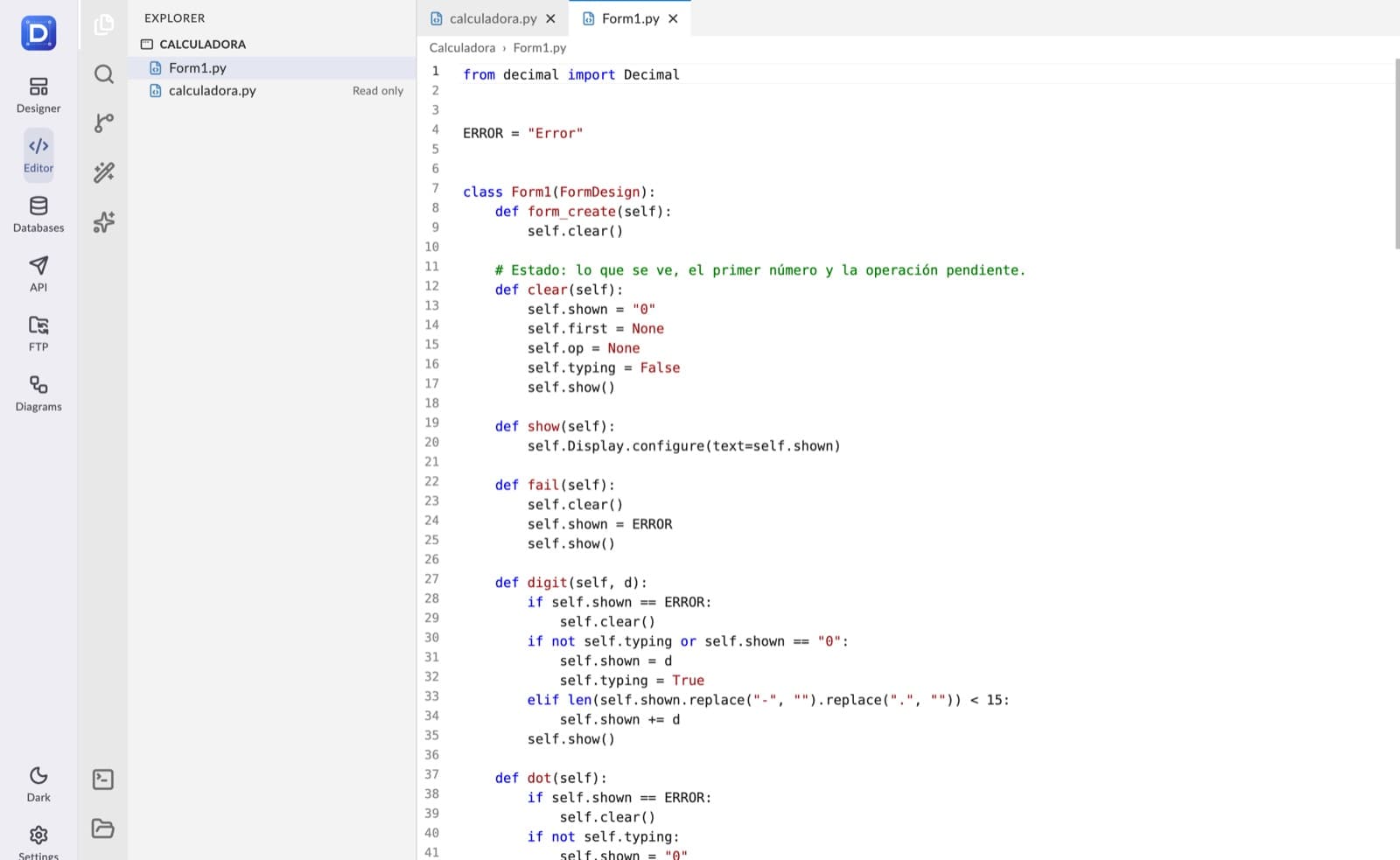
Explorer and tabs
- The activity bar holds Explorer, Search, Source control, Claude: implement and AI chat, with the terminal and Open folder at the bottom.
- The explorer offers New file, New folder, Rename, Delete, Copy path, Open in terminal and Collapse all.
- Tabs have syntax highlighting for dozens of languages and line numbers. ⌘S / Ctrl+S saves; closing something unsaved asks first.
- Anything unsaved is kept when you switch modules.
Find and replace
- Find in file with Replace and Replace all.
- The Search panel goes through every file in the folder, with Match case and Regular expression; a click opens the file at that line.
Terminal
⌘J / Ctrl+J shows or hides the terminal, which runs commands in the open folder (git status, python3 app.py, npm install…). The up and down arrows go through the history and Stop ends the running command.
Source control (git)
- Changes: modified files with their diff; type the Commit message and use Commit all or Commit and push. Also Amend last commit and Undo last commit.
- Push, Pull and Check the remote for changes (fetch), with what is pending each way.
- History of the branch or of All branches: view the commit, Revert this commit, Apply to the current branch (cherry-pick), create a branch or a tag from it and Reset the branch to this commit….
- Local and remote Branches: create, switch, Merge, rename and delete (also on the remote).
- Stash changes to switch branches and bring them back later.
- Remotes…, Initialize repository, Clone repository… and Publish to GitHub… (public or private) with your GitHub account (a token with the “repo” scope).
Claude: implement
Claude: implement asks Claude for a change through the Anthropic API (Claude Opus 5.5 by default). Claude explores the open folder (lists, reads and searches files) and proposes changes to one or more files.
- Nothing is written until you apply it: the Proposed changes list shows each file with its added and removed lines; a click opens the diff with Apply and Discard.
- Apply all writes every change; if a file changed on disk while Claude was working, you are warned instead of it being overwritten.
- It needs the Anthropic key in Settings → Artificial intelligence.
- The 📎 clip attaches images and text or code files to the request; the wallet button opens the folder's AI budget.
AI chat
The AI chat answers about the open file with the provider from Settings. If it proposes the whole file, Apply to the file puts it in the tab (unsaved) and Copy the code copies it.
In all three chats Enter sends, Shift+Enter adds a line break and the 📎 clip attaches images (PNG, JPG, GIF or WebP up to 5 MB) and text files (up to 300 KB).