Lesson 10 · 10 of 20
Context menu and menu buttons · tkinter
Open a menu on right-click in tkinter (tk_popup) and use ttk.Menubutton and tk.OptionMenu to pick options inside the window.
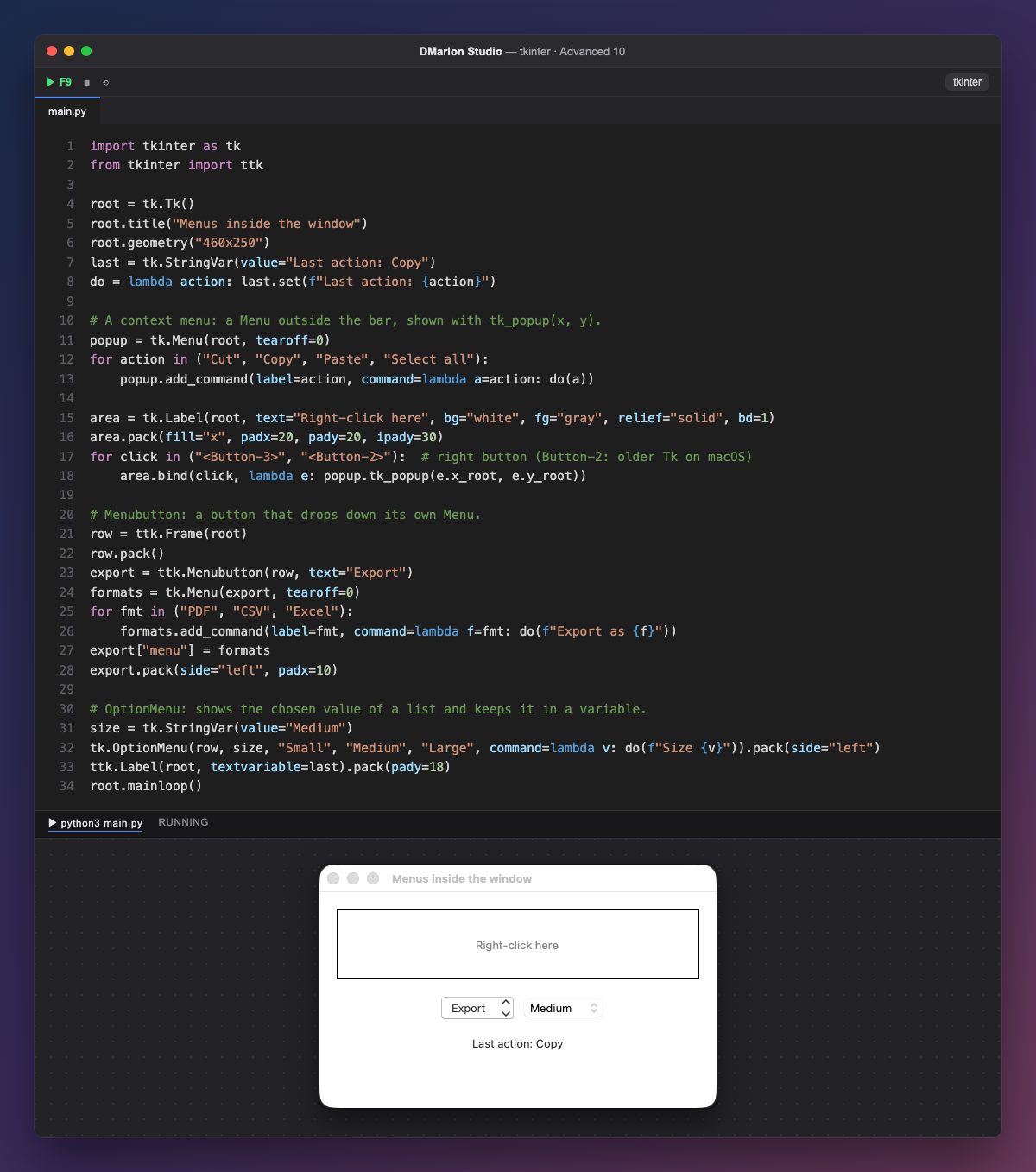
A context menu is an ordinary tk.Menu that is not put on the bar: it is shown where the mouse is with tk_popup(x, y). The event's e.x_root and e.y_root are screen coordinates, which is what tk_popup needs.
It opens when you right-click the box. That button is <Button-3> on Windows, Linux and current Tk on macOS, but older Tk versions on macOS used <Button-2>; binding both covers everything. Each entry calls do, which writes the last action in the label below.
ttk.Menubutton is a button that drops down its own menu: create the menu with the button as its parent and attach it with export["menu"] = formats. It suits groups of actions, such as exporting to PDF, CSV or Excel.
tk.OptionMenu(parent, variable, option1, option2, ...) is a button that shows the chosen option and keeps it in a StringVar; command= gets the new value every time it changes. It is like a read-only ttk.Combobox, but with a menu.
In DMarlon Studio, widgets have a Right click event in the inspector's Events tab (the studio binds it to <Button-2> and <Button-3>); from that method you can open a context menu with tk_popup, as here.
Code · main.py
import tkinter as tkfrom tkinter import ttkroot = tk.Tk()root.title("Menus inside the window")root.geometry("460x250")last = tk.StringVar(value="Last action: Copy")do = lambda action: last.set(f"Last action: {action}")# A context menu: a Menu outside the bar, shown with tk_popup(x, y).popup = tk.Menu(root, tearoff=0)for action in ("Cut", "Copy", "Paste", "Select all"): popup.add_command(label=action, command=lambda a=action: do(a))area = tk.Label(root, text="Right-click here", bg="white", fg="gray", relief="solid", bd=1)area.pack(fill="x", padx=20, pady=20, ipady=30)for click in ("<Button-3>", "<Button-2>"): # right button (Button-2: older Tk on macOS) area.bind(click, lambda e: popup.tk_popup(e.x_root, e.y_root))# Menubutton: a button that drops down its own Menu.row = ttk.Frame(root)row.pack()export = ttk.Menubutton(row, text="Export")formats = tk.Menu(export, tearoff=0)for fmt in ("PDF", "CSV", "Excel"): formats.add_command(label=fmt, command=lambda f=fmt: do(f"Export as {f}"))export["menu"] = formatsexport.pack(side="left", padx=10)# OptionMenu: shows the chosen value of a list and keeps it in a variable.size = tk.StringVar(value="Medium")tk.OptionMenu(row, size, "Small", "Medium", "Large", command=lambda v: do(f"Size {v}")).pack(side="left")ttk.Label(root, textvariable=last).pack(pady=18)root.mainloop()Key points
tk_popup(x_root, y_root)opens a menu where the mouse is.- Bind
<Button-3>and<Button-2>for the right button. ttk.Menubuttondrops down its own menu.tk.OptionMenukeeps the chosen option in a variable.
Exercise
Add a separator and a "Clear" entry to the context menu that sets the label to "Last action: none"; and add "Huge" to the OptionMenu.