Lesson 3 · 3 of 20
Images made in code · tkinter
Create tkinter images without files: tk.PhotoImage, put() to paint pixels and zoom() to enlarge them, shown in a label and a button.
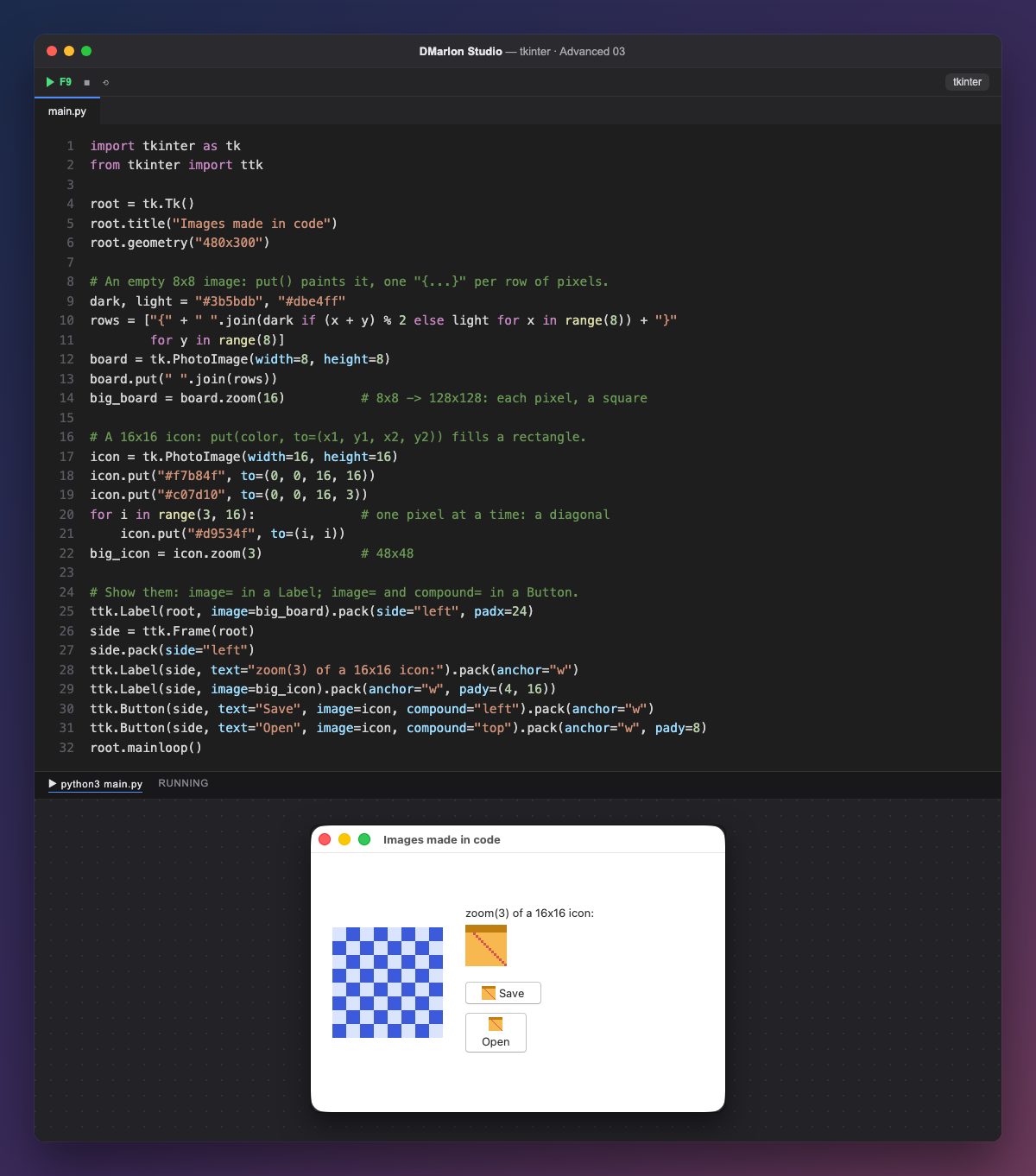
tk.PhotoImage(width=8, height=8) creates an empty 8 × 8 pixel image. Usually you load one from a file (file="logo.png"), but you can also paint it from code, so this example needs no image files at all.
put() paints. Given a string of rows, each in braces with one colour per pixel ("{#3b5bdb #dbe4ff ...} {...}"), it fills the image in one go: the chessboard comes from (x + y) % 2. With to=(x1, y1, x2, y2) it paints a rectangle in one colour, and with to=(x, y) a single pixel, like the red diagonal of the icon.
zoom(16) returns a new image 16 times bigger, where each pixel becomes a square (the opposite is subsample). That is why the 8 × 8 board shows as 128 × 128 and the 16 × 16 icon as 48 × 48.
Images are shown with image=: alone in a ttk.Label, and next to the text in a ttk.Button. compound says where the image goes relative to the text: "left", "top", "right" or "bottom". Important: keep the image in a variable; if Python frees it, the widget goes blank.
In DMarlon Studio, the Image component in the palette shows an image file from the project, fitted the way you choose in the inspector, and the studio writes the code. Images made in code, like these, are handy for small icons and drawings that change.
Code · main.py
import tkinter as tkfrom tkinter import ttkroot = tk.Tk()root.title("Images made in code")root.geometry("480x300")# An empty 8x8 image: put() paints it, one "{...}" per row of pixels.dark, light = "#3b5bdb", "#dbe4ff"rows = ["{" + " ".join(dark if (x + y) % 2 else light for x in range(8)) + "}" for y in range(8)]board = tk.PhotoImage(width=8, height=8)board.put(" ".join(rows))big_board = board.zoom(16) # 8x8 -> 128x128: each pixel, a square# A 16x16 icon: put(color, to=(x1, y1, x2, y2)) fills a rectangle.icon = tk.PhotoImage(width=16, height=16)icon.put("#f7b84f", to=(0, 0, 16, 16))icon.put("#c07d10", to=(0, 0, 16, 3))for i in range(3, 16): # one pixel at a time: a diagonal icon.put("#d9534f", to=(i, i))big_icon = icon.zoom(3) # 48x48# Show them: image= in a Label; image= and compound= in a Button.ttk.Label(root, image=big_board).pack(side="left", padx=24)side = ttk.Frame(root)side.pack(side="left")ttk.Label(side, text="zoom(3) of a 16x16 icon:").pack(anchor="w")ttk.Label(side, image=big_icon).pack(anchor="w", pady=(4, 16))ttk.Button(side, text="Save", image=icon, compound="left").pack(anchor="w")ttk.Button(side, text="Open", image=icon, compound="top").pack(anchor="w", pady=8)root.mainloop()Key points
tk.PhotoImage(width=..., height=...)creates an empty image.put(color, to=...)paints pixels or rectangles.zoom(n)enlarges andsubsample(n)shrinks.- Keep the image in a variable or it disappears.
Exercise
Draw a 16 × 16 smiley face with put (eyes and mouth) and show it, enlarged with zoom(4), on a third button.