Lesson 11 · 11 of 20
The status bar · tkinter
Add a status bar to a tkinter window: a frame at the bottom with sunken labels that are updated from code.
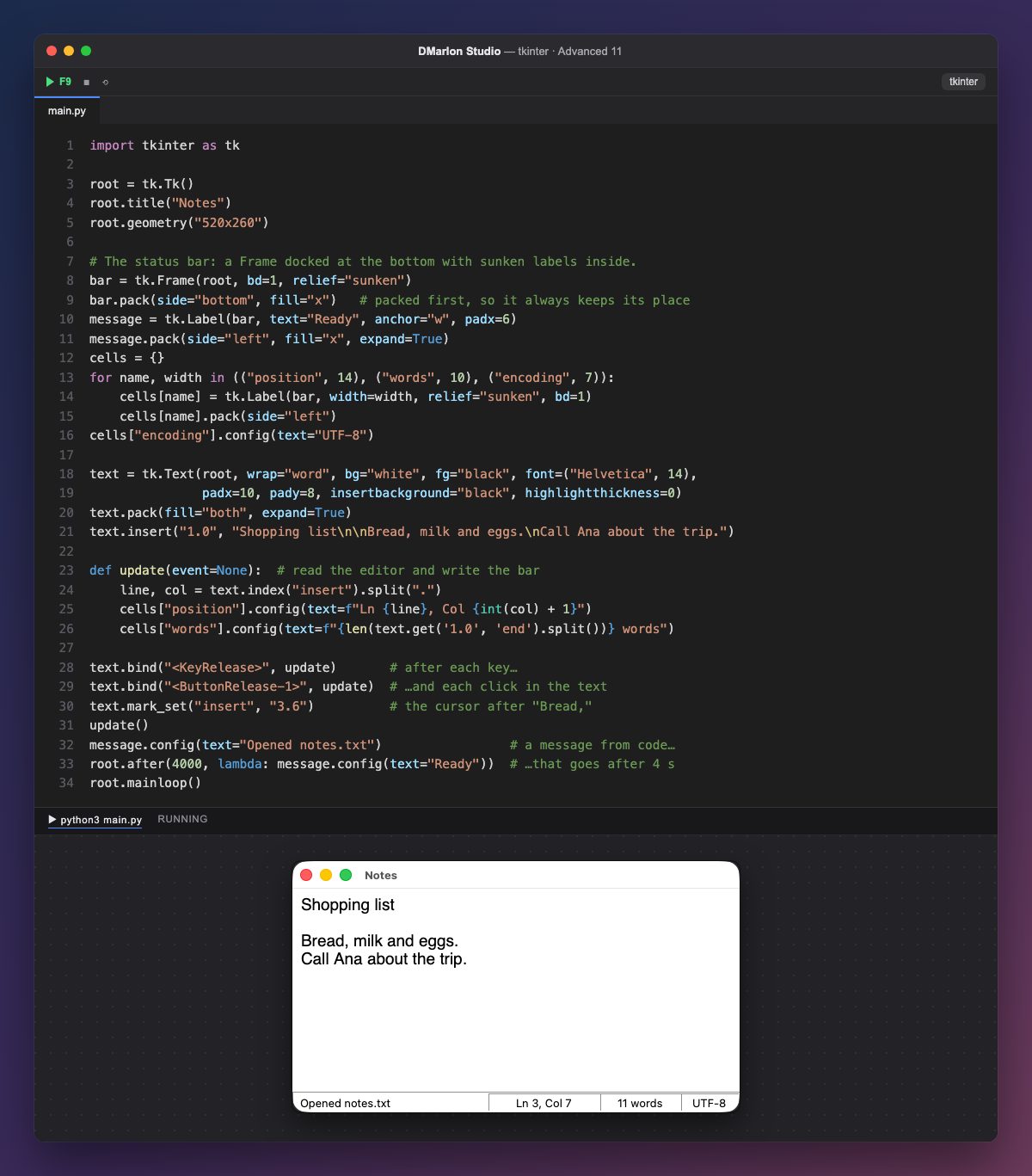
The status bar is a sunken tk.Frame (relief="sunken") docked at the bottom with pack(side="bottom", fill="x"). It is packed before the text: that way, if the window shrinks, the editor gives up space and the bar never disappears.
Inside there is a message label that takes the free space (fill="x", expand=True) and three fixed-width cells, also sunken: position, words and encoding. They are kept in the cells dictionary so you can change them by name.
update() reads the editor and writes the bar: index("insert") returns the cursor position as "line.column" (the column starts at 0, hence the + 1) and get("1.0", "end").split() counts the words. It runs after every key (<KeyRelease>), every click, and once at start, with the cursor placed after "Bread," by mark_set.
Passing messages are written with config(text=...) and removed with after: "Opened notes.txt" goes back to "Ready" after 4 seconds.
In DMarlon Studio it is the Status bar in the palette: the studio generates it as a sunken label docked to the bottom edge, with an optional icon, and you change its text from code with configure(text=...).
Code · main.py
import tkinter as tkroot = tk.Tk()root.title("Notes")root.geometry("520x260")# The status bar: a Frame docked at the bottom with sunken labels inside.bar = tk.Frame(root, bd=1, relief="sunken")bar.pack(side="bottom", fill="x") # packed first, so it always keeps its placemessage = tk.Label(bar, text="Ready", anchor="w", padx=6)message.pack(side="left", fill="x", expand=True)cells = {}for name, width in (("position", 14), ("words", 10), ("encoding", 7)): cells[name] = tk.Label(bar, width=width, relief="sunken", bd=1) cells[name].pack(side="left")cells["encoding"].config(text="UTF-8")text = tk.Text(root, wrap="word", bg="white", fg="black", font=("Helvetica", 14), padx=10, pady=8, insertbackground="black", highlightthickness=0)text.pack(fill="both", expand=True)text.insert("1.0", "Shopping list\n\nBread, milk and eggs.\nCall Ana about the trip.")def update(event=None): # read the editor and write the bar line, col = text.index("insert").split(".") cells["position"].config(text=f"Ln {line}, Col {int(col) + 1}") cells["words"].config(text=f"{len(text.get('1.0', 'end').split())} words")text.bind("<KeyRelease>", update) # after each key…text.bind("<ButtonRelease-1>", update) # …and each click in the texttext.mark_set("insert", "3.6") # the cursor after "Bread,"update()message.config(text="Opened notes.txt") # a message from code…root.after(4000, lambda: message.config(text="Ready")) # …that goes after 4 sroot.mainloop()Key points
- Pack the bar first, with
side="bottom". relief="sunken"gives it the sunken look.- Update it from events with
config(text=...). afterclears passing messages.
Exercise
Add a cell with the number of characters and make the message change to "Modified" as soon as something is typed.