Lesson 2 · 2 of 20
Labels: text and colours · tkinter
Show text in a tkinter window with Label: font, colours, alignment with anchor and line breaks with wraplength.
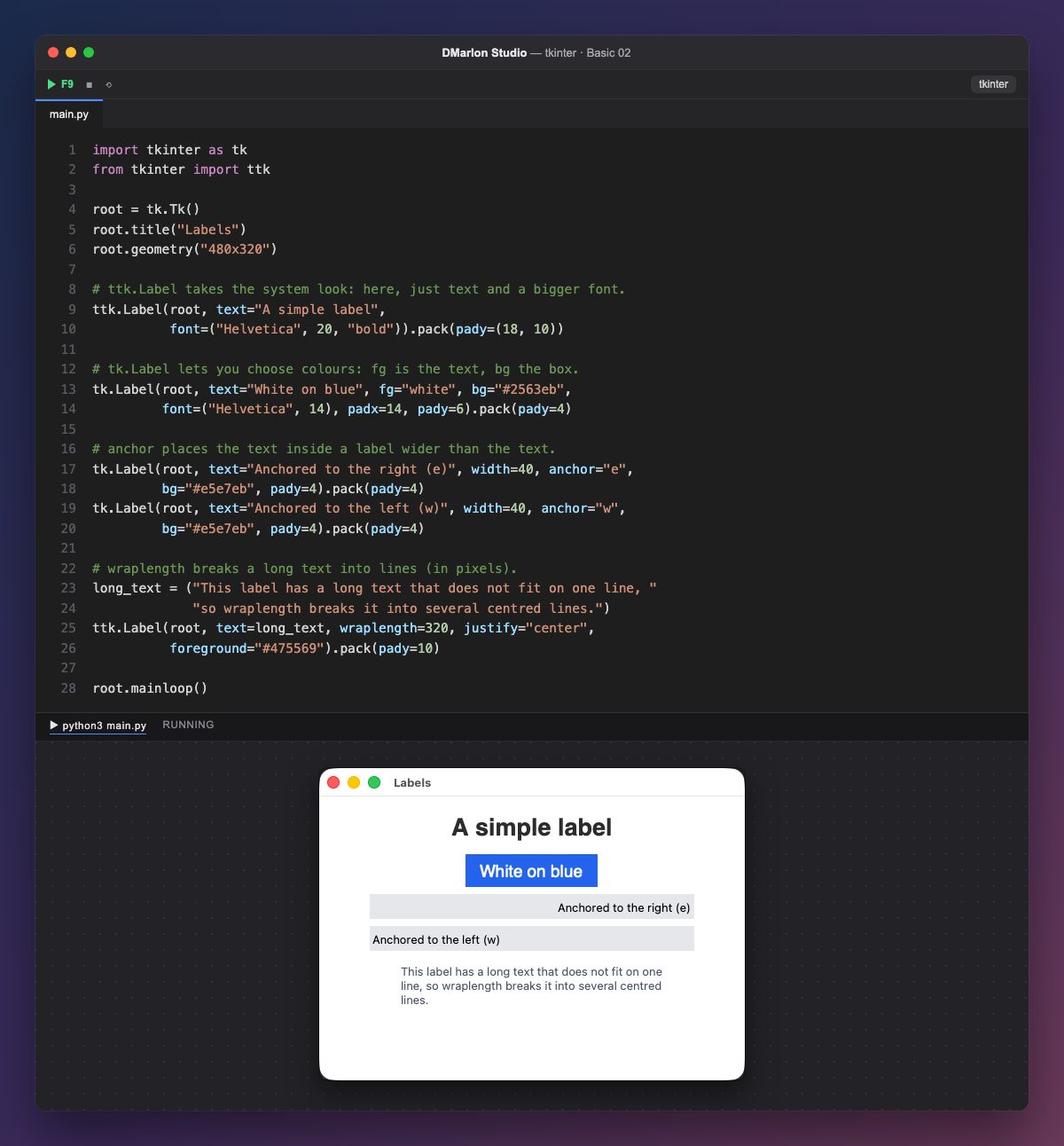
A label shows text the user does not edit. The first one is a ttk.Label with font=("Helvetica", 20, "bold"): family, size and style. pack(pady=(18, 10)) leaves some space above and below it.
For colours we use tk.Label: fg is the colour of the text and bg the background, written as #rrggbb. ttk.Label also has foreground and background, but the macOS theme does not paint that background, so when colour matters the classic tk label is the safe choice. padx and pady add inner padding.
width=40 makes the label wider than its text (measured in characters). Then `anchor` decides where the text sits inside it: "e" (east) on the right, "w" (west) on the left and "center" in the middle. These compass points (n, s, e, w, ne…) are used all over tkinter.
`wraplength=320` breaks the text into lines of at most 320 pixels, and justify="center" centres those lines. Without wraplength, a long label would run off the window.
In the DMarlon Studio palette this is the Label: drag it onto the form and change its text, colours, font, alignment (anchor) and line wrap (wraplength) in the inspector. The studio writes the tkinter code.
Code · main.py
import tkinter as tkfrom tkinter import ttkroot = tk.Tk()root.title("Labels")root.geometry("480x320")# ttk.Label takes the system look: here, just text and a bigger font.ttk.Label(root, text="A simple label", font=("Helvetica", 20, "bold")).pack(pady=(18, 10))# tk.Label lets you choose colours: fg is the text, bg the box.tk.Label(root, text="White on blue", fg="white", bg="#2563eb", font=("Helvetica", 14), padx=14, pady=6).pack(pady=4)# anchor places the text inside a label wider than the text.tk.Label(root, text="Anchored to the right (e)", width=40, anchor="e", bg="#e5e7eb", pady=4).pack(pady=4)tk.Label(root, text="Anchored to the left (w)", width=40, anchor="w", bg="#e5e7eb", pady=4).pack(pady=4)# wraplength breaks a long text into lines (in pixels).long_text = ("This label has a long text that does not fit on one line, " "so wraplength breaks it into several centred lines.")ttk.Label(root, text=long_text, wraplength=320, justify="center", foreground="#475569").pack(pady=10)root.mainloop()Key points
ttk.Labeltakes the system look;tk.Labelalways honoursbgandfg.fontis a tuple: family, size and style.anchorplaces the text inside the label using compass points.wraplength(in pixels) breaks a long text into several lines.
Exercise
Add a label with a red background and white text, centred with anchor="center", and lower wraplength to 200 to see how the lines change.