Lesson 16 · 16 of 20
Layout with place · tkinter
tkinter's place manager: absolute positions in pixels, positions relative to the window's size, and anchor. It is the one DMarlon Studio uses.
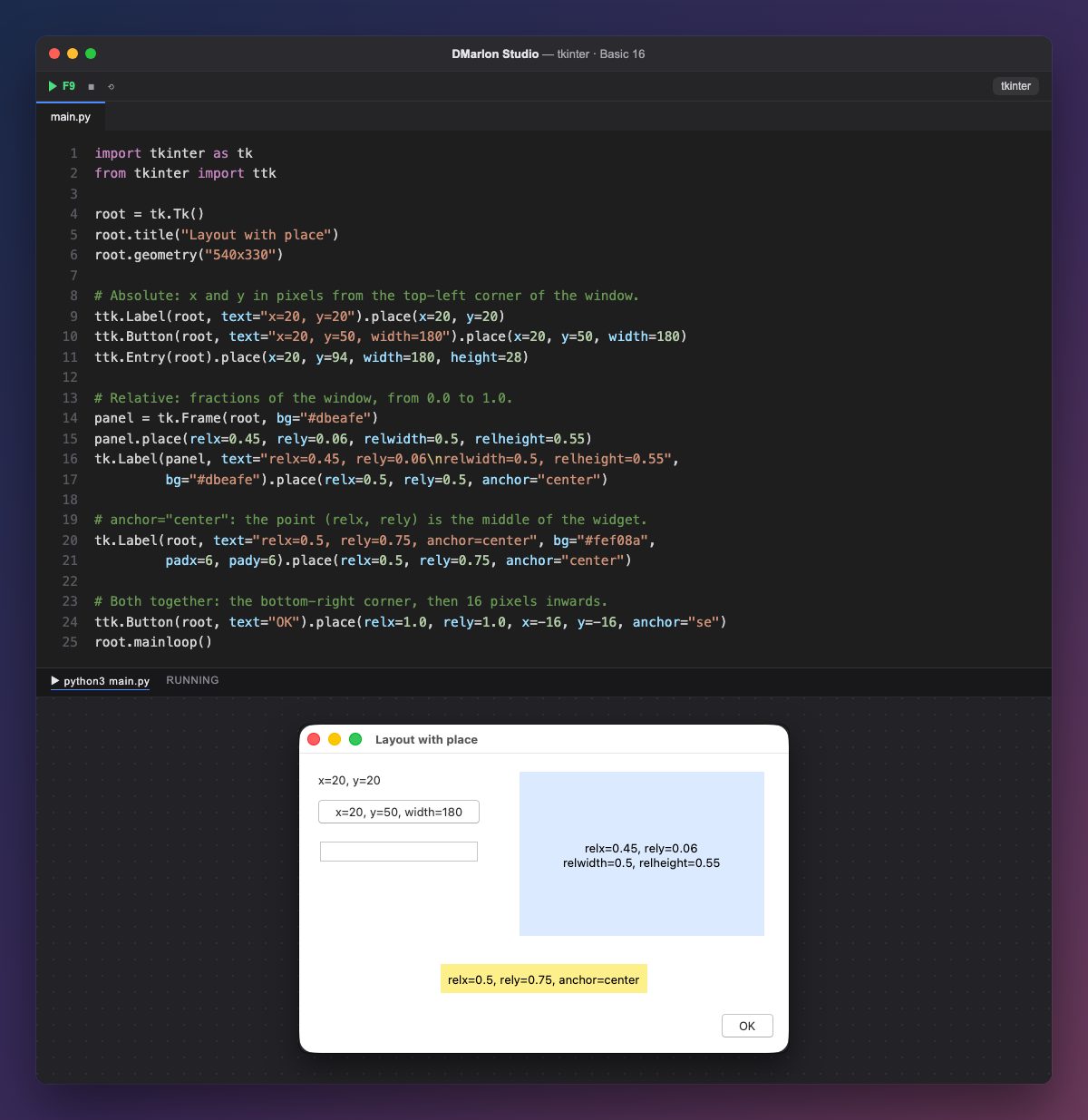
`place` puts each widget at an exact position. With `x` and `y` it is measured in pixels from the top-left corner, and `width` and `height` also fix its size, as with the button and the entry on the left.
Relative options go from 0.0 to 1.0: relx=0.45 is 45 % of the window's width. The blue panel (tk.Frame) also uses relwidth=0.5 and relheight=0.55, so it grows when the window gets bigger.
`anchor` says which point of the widget lands on that position. With anchor="center", relx=0.5, rely=0.5 puts the label right in the middle of the panel, and the yellow one is centred across the window. With "se" (south-east), what gets placed is the bottom-right corner.
Both kinds add up: the OK button uses relx=1.0, rely=1.0 (the window's bottom-right corner) and x=-16, y=-16 to move 16 pixels inwards. It stays in the corner even when the size changes.
This is the manager DMarlon Studio uses: every widget you drop on the form is written with place(x=..., y=..., width=..., height=...), using the position and size it has in the designer.
Code · main.py
import tkinter as tkfrom tkinter import ttkroot = tk.Tk()root.title("Layout with place")root.geometry("540x330")# Absolute: x and y in pixels from the top-left corner of the window.ttk.Label(root, text="x=20, y=20").place(x=20, y=20)ttk.Button(root, text="x=20, y=50, width=180").place(x=20, y=50, width=180)ttk.Entry(root).place(x=20, y=94, width=180, height=28)# Relative: fractions of the window, from 0.0 to 1.0.panel = tk.Frame(root, bg="#dbeafe")panel.place(relx=0.45, rely=0.06, relwidth=0.5, relheight=0.55)tk.Label(panel, text="relx=0.45, rely=0.06\nrelwidth=0.5, relheight=0.55", bg="#dbeafe").place(relx=0.5, rely=0.5, anchor="center")# anchor="center": the point (relx, rely) is the middle of the widget.tk.Label(root, text="relx=0.5, rely=0.75, anchor=center", bg="#fef08a", padx=6, pady=6).place(relx=0.5, rely=0.75, anchor="center")# Both together: the bottom-right corner, then 16 pixels inwards.ttk.Button(root, text="OK").place(relx=1.0, rely=1.0, x=-16, y=-16, anchor="se")root.mainloop()Key points
xandyare pixels from the top-left corner.relx,rely,relwidthandrelheightgo from 0.0 to 1.0.anchorchooses which point of the widget is placed.- Absolute and relative positions can be added together.
Exercise
Place a «Back» button in the bottom-left corner, 16 pixels from the edges, with rely=1.0 and anchor="sw".